Back to All Tutorials
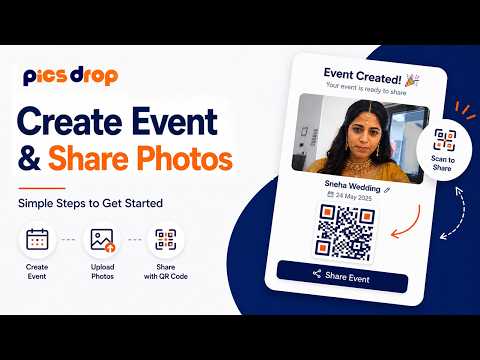
Create Event, Upload Photos & Share QR Code
PicsDrop step-by-step video watch page. Learn how to configure your account.
Video Walkthrough Transcript & Guide
Managing event galleries and sharing them with clients is streamlined. This tutorial covers configuring, tagging, and sharing your events.
Step-by-step event management guide:
- Step 1: Event Configuration: Click the 'Create Event' floating button. Enter the event title, date, location, client contact details (Email and Whatsapp), visibility level, password protection, and guest upload rules.
- Step 2: Photo Uploading & Status Tabs: In the event workspace, click 'Upload Media' to drag and drop images. The interface provides two gallery views: the All Media tab displays approved photos, and the Upload Requests tab holds photos uploaded by guests that require your approval before going live.
- Step 3: Photo Tagging & Categories: Create custom categories with custom colors. You can select photos individually or use the 'A' keyboard shortcut to select all to bulk delete, assign category tags, or approve/reject pending guest uploads.
- Step 4: Sharing & QR Brochures: Click 'Share' to launch the ShareDialog modal. You can copy the custom subpath gallery link, send it directly to client Whatsapp numbers, or download the printable high-res QR code flyer containing client instructions.