
Back to All Tutorials
How to Enable One Event QR Code on PicsDrop | Step-by-Step Tutorial
PicsDrop step-by-step video watch page. Learn how to configure your account.
Video Walkthrough Transcript & Guide
Learn how to enable One Event QR Code on PicsDrop and display only your selected event to your clients. In this tutorial, you'll learn how to:
- Enable One Event QR Code
- Select the event you want to share
- Show only the enabled event
- Make event photo access simple for your clients
Perfect for photographers who want a quick and focused way to share event photos.
Other Video Tutorials

How PicsDrop Works

Dashboard Overview & Analytics

Create Event, Upload Photos & Share QR Code

Smart Booking & Calendar Management

Notes & Reminders Management

Website Builder for Photographers

AI Face Recognition Photo Sharing App for Photographers

How to Connect Your Camera to PicsDrop Using FTP | Complete Setup Guide
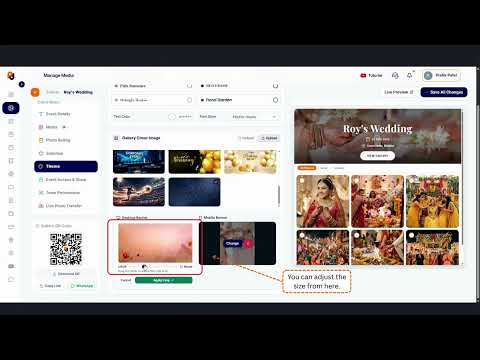
How to Customize Your Event Banner on PicsDrop | Step-by-Step Tutorial

How to Enable One Event QR Code on PicsDrop | Step-by-Step Tutorial

How to Design a Custom QR Standee on PicsDrop | Step-by-Step Tutorial
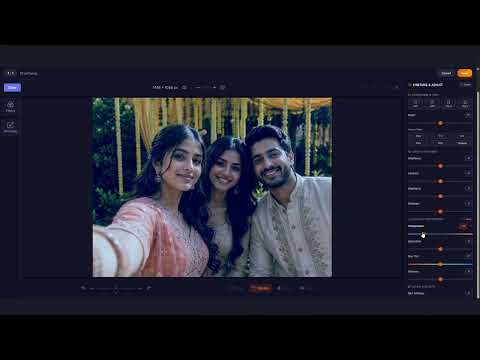
How to Use Photo Selection Feature in PicsDrop | Step-by-Step Tutorial

How to Sell Photos Online with PicsDrop | Photo Selling Feature Tutorial

How to Manage Store & Orders on PicsDrop | Step-by-Step Tutorial